Feature Spotlight: Streamlining 2FA Adoption for Your Team

Think about the first thing you do when you get into a car. You click your seatbelt. It takes maybe two seconds. Most of the time, you don’t even think about it; it’s muscle memory. You don't feel "restricted" by the seatbelt while you drive, and you certainly don't notice it—until the one moment you actually need it to save your life.
Two-Factor Authentication (2FA) is your digital seatbelt. It is a tiny, two-second action that sits quietly in the background of your workflow. But in the event of a password breach or a phishing attempt, it is the one thing keeping your digital life from flying through the windshield.
Table of Contents
Why we resist setting up 2FA
If 2FA is a lifesaver, why do so many teams drag their feet on adopting it? Usually, it comes down to two things: the perception that it’s complicated, and the fear of getting locked out.
We’ve all had that thought: "Is this going to be hard to set up? What happens if I lose my phone? Will I lose access to everything I’ve worked on?"
These are valid concerns, but modern 2FA implementation—specifically within TeamPassword—is designed to be frictionless. It’s not about adding a wall; it’s about adding a lock that only you have the key to.
Demystifying the Tech: It's Just a Clock
Let’s strip away the jargon. Most 2FA systems, including ours, use something called TOTP (Time-based One-Time Password). While the acronym sounds technical, the concept is simple: it’s a digital code that changes every 30 seconds.
You don't need to wait for a text message to arrive (which can be intercepted) or carry around a physical hardware key. You just need an app that acts as a secure clock.
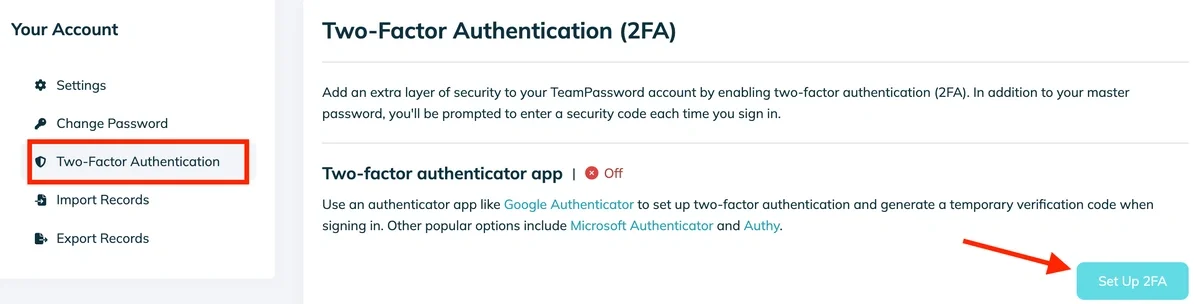
How to Set Up 2FA for your password manager
You don’t need to download a proprietary "TeamPassword Authenticator" to make this work. You can use the authenticator app you already know and trust, such as:
- Google Authenticator
- Microsoft Authenticator
- Ente Auth
Setting it up is as easy as pointing your phone’s camera at the screen.

What if I Lose My Phone?
This is the number one objection we hear: "If my phone breaks or gets stolen, I’m locked out forever."
False.
We have built-in redundancy for exactly this scenario. When you configure 2FA, TeamPassword generates a set of Backup Codes. These are permanent, one-time-use codes that bypass the need for your phone entirely.
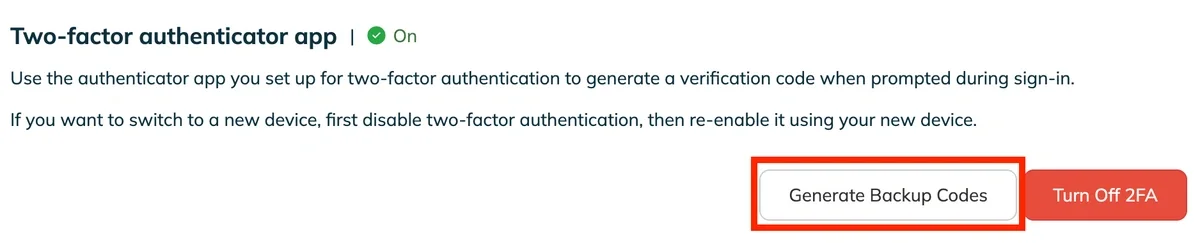
If you lose your device, you simply grab a backup code, log in, and reset your 2FA settings to your new phone. You are never truly locked out as long as you have these codes.
Don't just save your backup codes to your desktop (where you might not be able to reach them if you're locked out of your computer!). Print them out or write them down. Keep them in a physical drawer, a safe, or your wallet. Sometimes the best digital security is a piece of paper.
For Team Leads: How to Roll This Out
If you are a manager reading this, you are probably getting ready to hit the "Enforce 2FA" button for your organization. You want to secure your company, but you don't want to annoy your team.
Here is the secret to a smooth rollout: Education before Enforcement.
Before you require 2FA, let your team know it’s coming, and that it’s easy. Better yet, share our step-by-step documentation to walk them through the clicks.
Resource for Managers: Copy the link below and Slack it to your team before you enforce the new policy:
How to Set Up 2FA (Two-Factor Authentication) on TeamPassword
Securing your workflow doesn't have to be a headache. It takes 30 seconds to set up, and it provides peace of mind that lasts forever. Click the button, scan the code, and drive safely.
Start a free trial of TeamPassword today - no credit card or commitment required.
おすすめの記事
The 5 Best Enterprise Password Vaults (2026 Comparison)
Standard password tools fail at enterprise scale. Learn how to choose a password manager for security, compliance (SOC ...
3 Best Password Managers for Android (2026)
Here are the best password managers for Android to help you extend your cybersecurity best practices to your ...
What is password encryption and how does it work?
Password encryption is the number one component of password security. TeamPassword encrypts passwords with state-of-the-art technology to keep ...
Cybersecurity for Utilities: Common Threats & Best Practices
The utilities sector is ripe for cyber threats. Learn more about these threats and how to prevent them ...